Welcome to E-Lighthouse Network Planner
E-Lighthouse Network Planner (ENP) helps you model, visualize, and analyze complex networks before making operational or planning decisions.
It is designed for teams working with IP/MPLS/SR, optical transport, and multi-layer environments, and combines an interactive web interface with simulation and analysis capabilities.
Start here if your goal is simple: understand the network, test scenarios, and make better decisions with less guesswork.
Start Here Create a Network Design
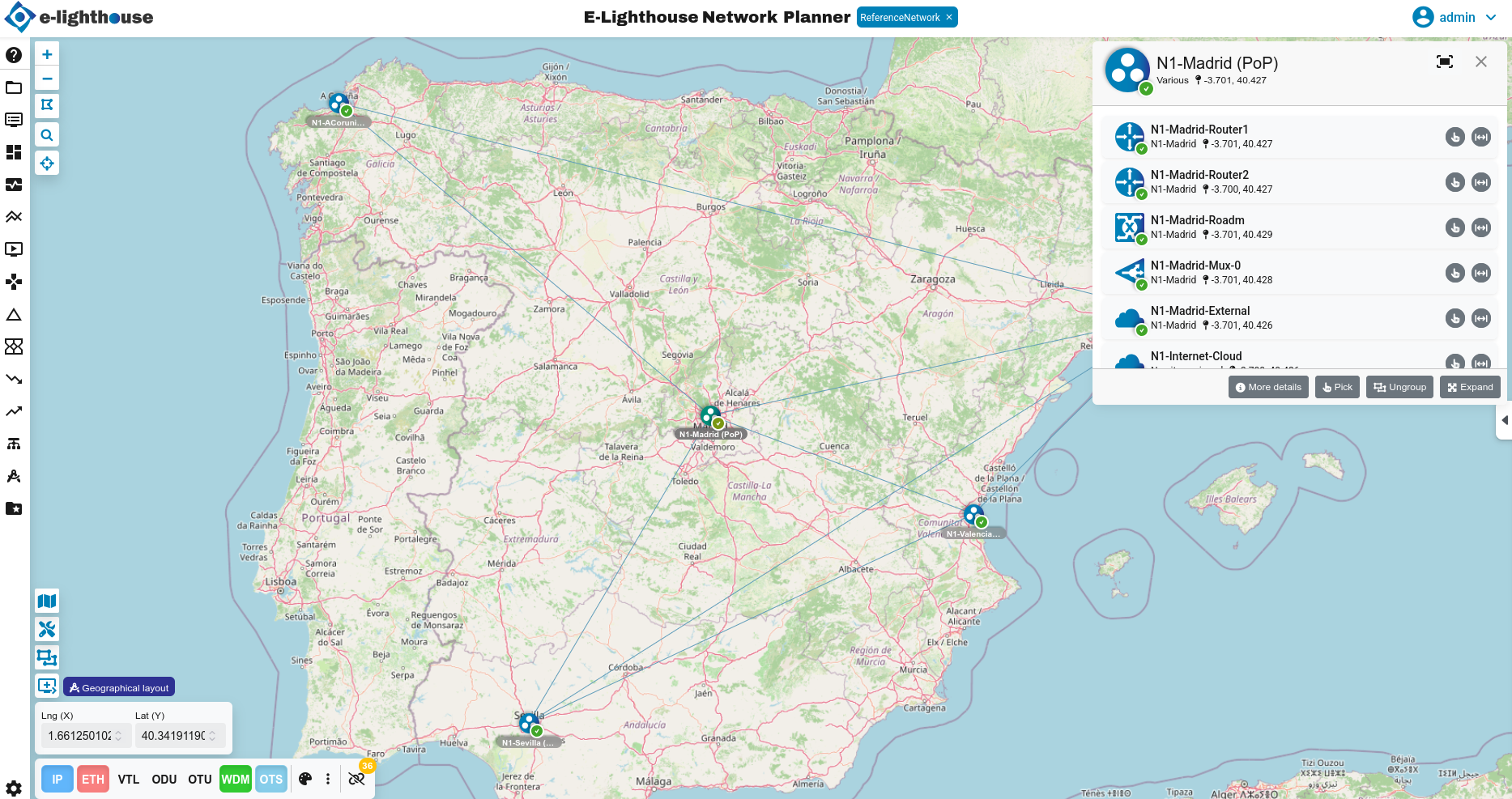
-
E-Lighthouse Network Planner overview video
Watch a short overview of E-Lighthouse Network Planner.
What You Can Do With ENP
ENP is especially useful when you need to:
- build or import a realistic network design
- inspect nodes, links, services, controllers, and traffic information
- simulate routing, resilience, and capacity scenarios
- compare the effect of failures or traffic growth before applying changes
- work across IP and transport layers in the same environment
Choose Your Path
I am new to ENP
Follow this order:
I want to start working immediately
Go directly to:
Most Common Tasks
-
Create a design
Start a new working model from the ENP interface.
-
Add nodes and links
Extend the topology and begin shaping the network.
-
Import controller topology
Connect ENP to external controller data and discover network domains.
-
Run analyses
Explore routing, resilience, monitoring, and forecast scenarios.
Why use ENP
ENP helps answer network related questions such as:
- What happens if a link, node, or SRG fails?
- Is the current design ready for traffic growth?
- Which routes or paths are being selected under current policies?
- How does imported controller information affect the model?
- Where are the main bottlenecks or weak points in the network?
For a broader summary, see Product capabilities.
How The Product Is Organized
At a high level, ENP has two main workspaces:
- Topology window: the visual workspace where you place, inspect, and navigate network elements
- Control window: the table-oriented workspace where you review data, filters, reports, and detailed properties
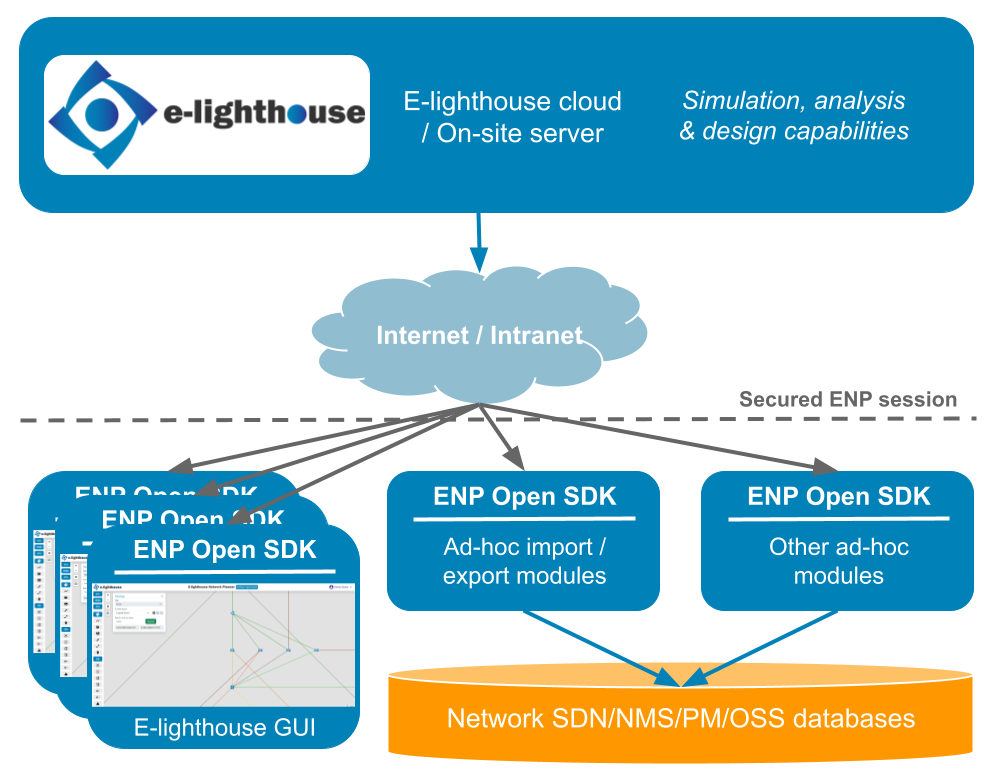
If You Are Learning ENP
Do not start with the deepest simulation reference pages. Start with:
Contact
For more information about ENP or to request a demo:
- Email: info@e-lighthouse.com
- Website: https://www.e-lighthouse.com