Add a Network Controller to a Design
This guide explains how to add a controller definition to an ENP design and import topology data from it.
Make sure a design is loaded and active in the Topology View. If not, start with Create a network design.
What Is a Network Controller?
In ENP, a Network Controller represents an external SDN controller that governs a subset of nodes and links within a network domain. These controllers can manage behaviors such as routing logic, traffic engineering, and real-time monitoring.
When you perform topology discovery, ENP queries the controller, imports its topology view, and integrates that information into your design.
This capability is deployment-dependent. In Network Planner, the controller-integration functionality should be treated as a module that must be enabled before users can create controllers and use discovery-driven workflows.
For the supported integration approach and how imported controller data is used by simulations, see SDN controller integration.
Step 1: Open the Controller Menu
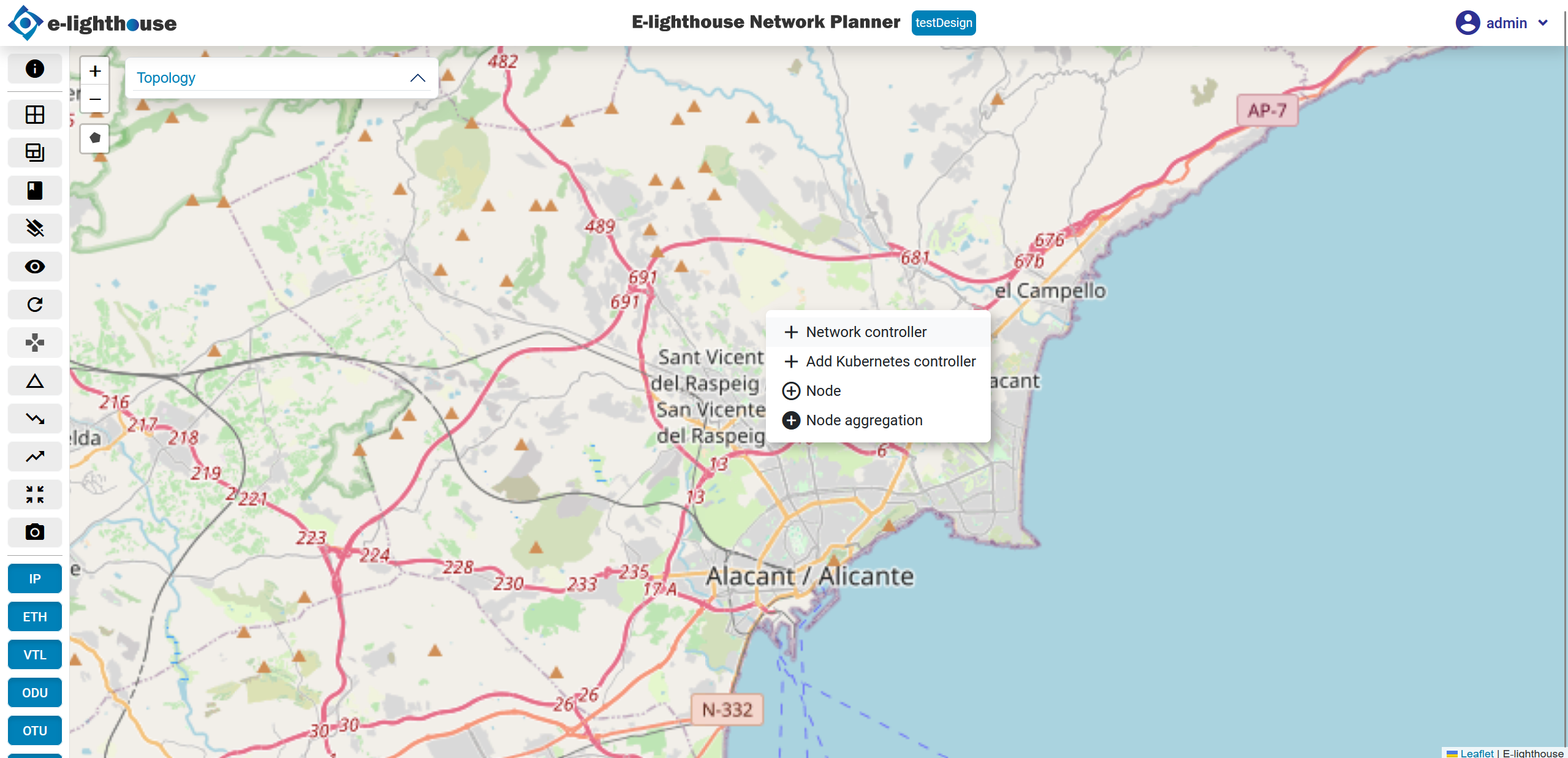
- In the Topology View, right-click anywhere on the canvas to open the context menu.
- Select the Network Controller option.
Step 2: Complete the Controller Form
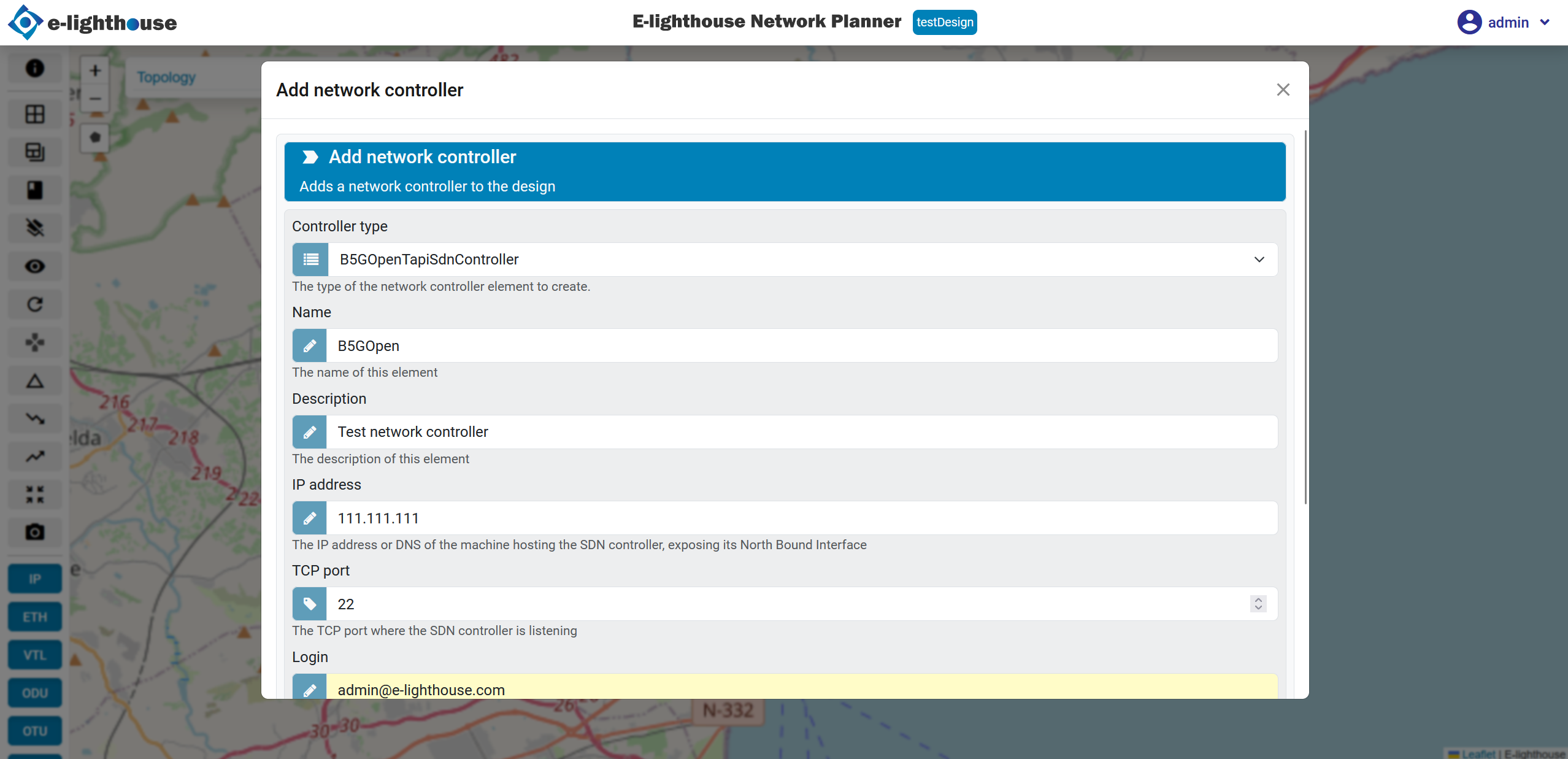
After selecting the option, a configuration form will appear.
Fill in the necessary controller parameters:
- Controller type
This may correspond to a supported integration profile based on a standard interface, for example
IETF:networks(RFC 8345) or Transport API (TAPI), depending on your deployment. - Name
- Description, if needed
- IP address
- Port number
- Authentication
- Username and password, if applicable
Step 3: Confirm Controller Creation
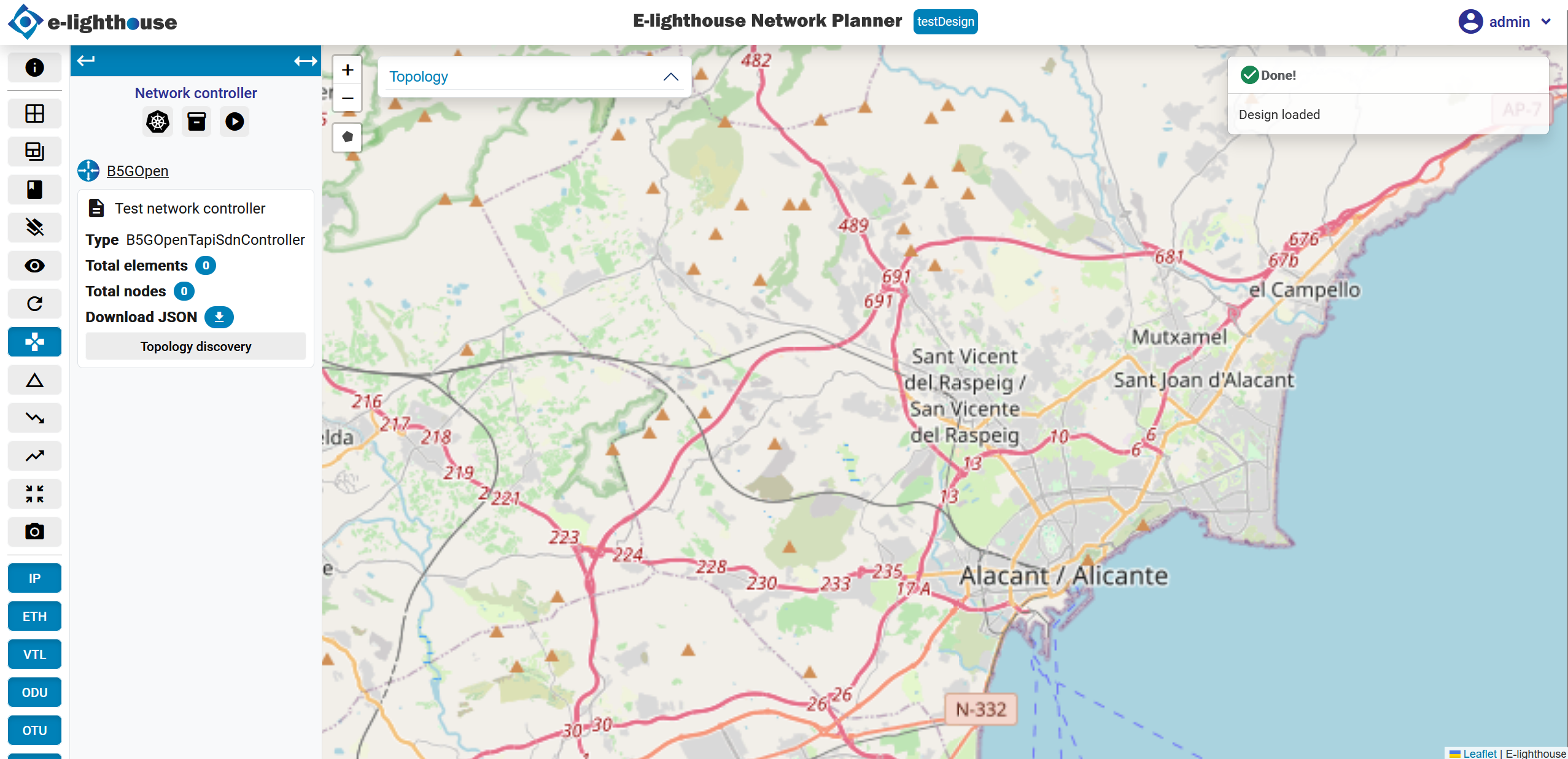
Once the form is complete, submit it to create the controller.
Step 4: Perform Topology Discovery
To visualize the controller’s managed topology:
- From the Topology View, locate the Network Controller section in the left panel.
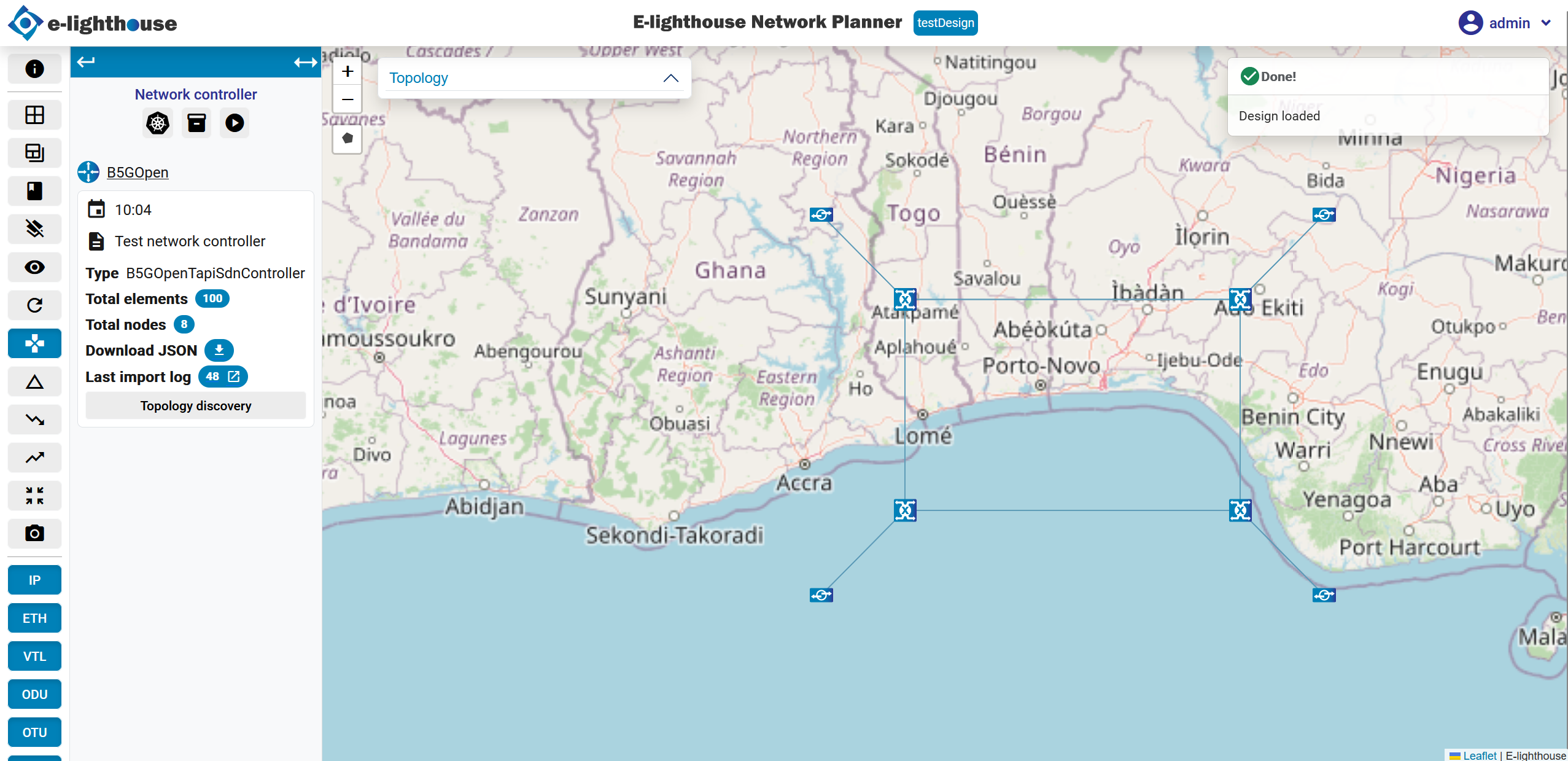
- Click Topology Discovery from the controller context panel.
- Wait for ENP to connect to the controller and import its internal topology.
What You Should Check
After discovery, verify that:
- the controller is listed in the design
- imported topology elements appear in the canvas
- the imported data can also be found from the relevant tables
Recommended Next Step
Once the controller data is visible, continue with Network Digital Twin overview to understand what types of simulation and analysis you can run on top of the imported model.