Topology window
The Topology window is the main visual workspace in ENP.
Use it when you need to:
- see the network structure
- select or place elements on the canvas
- move around layouts and maps
- access quick visual tools before going into table details
The figure below shows the main visual elements of the Topology window:
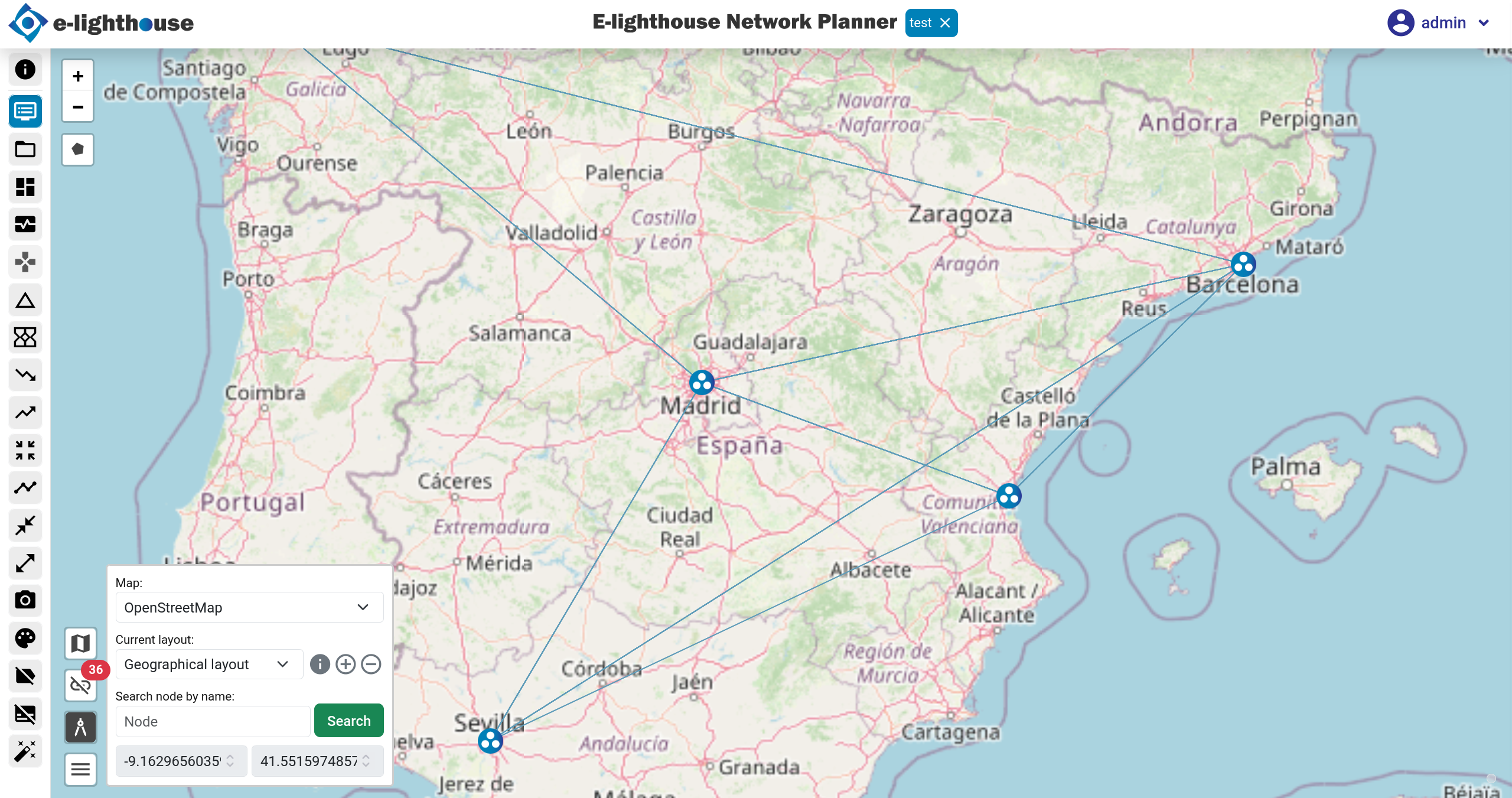
Canvas
The canvas displays the network nodes and links in graphical form.
It is the best place to understand the overall shape of a design before moving to detailed tables.
Map / clear view
In the map view, node positions are shown over a geographical background.
In the clear view, the nodes are displayed on an empty background.
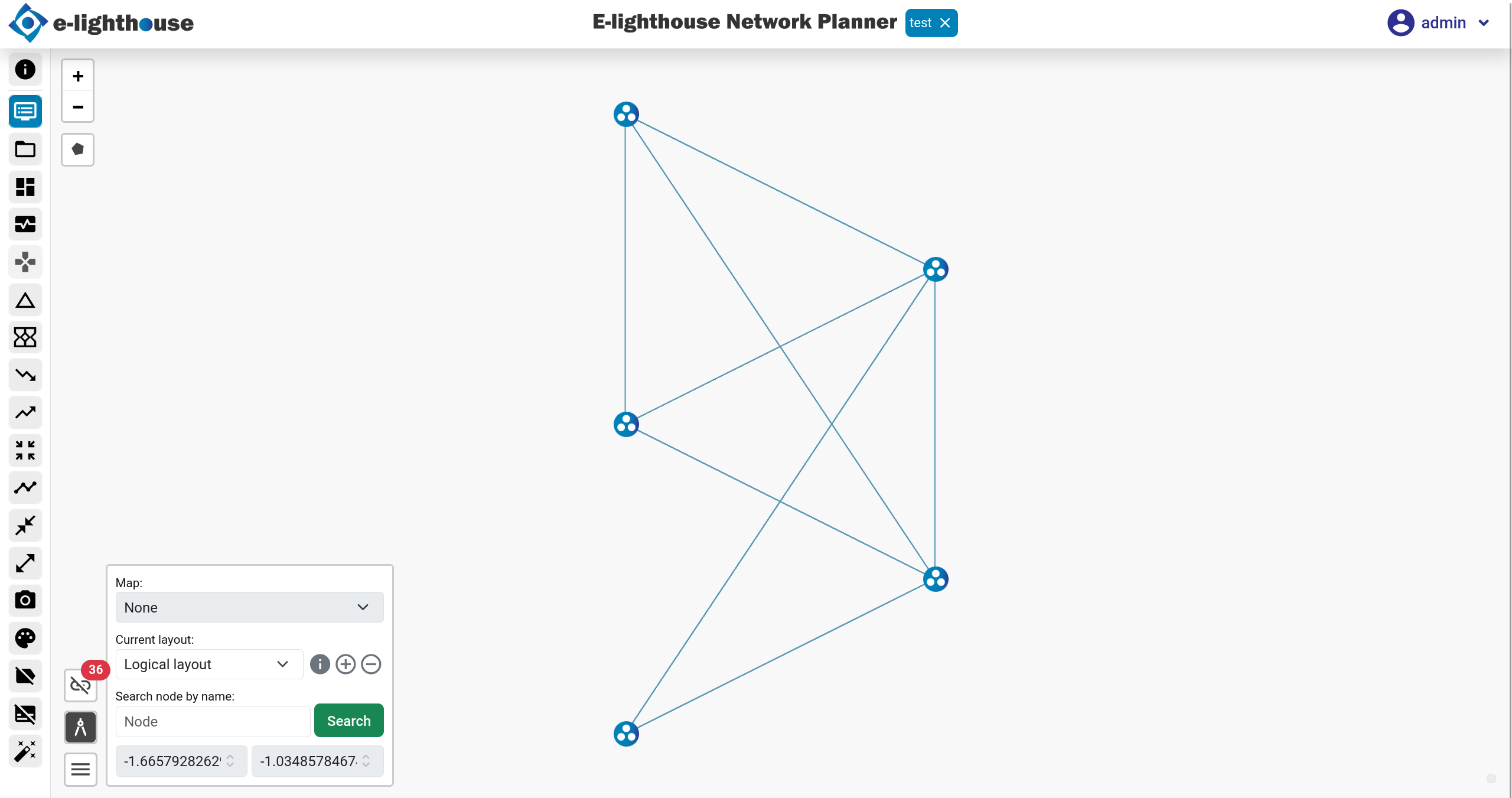
You can change this from the Current layout selector shown in the Topology panel.
Layout view
A network layout is a set of positions for the nodes in the canvas.
- Geographical layout: each node is shown using its longitude and latitude
- User-defined layouts: additional logical or custom views created to make analysis easier
Toolbar
The left toolbar contains the actions that are most often used from the visual workspace:
| Icon | Description |
|---|---|
 |
Open help and product tour information. |
 |
Open the Control Window. |
 |
Open the file system to load or manage designs. |
 |
Open dashboards related to the current design. |
 |
Open controller-related actions. |
 |
Launch delta analysis for the current design. |
 |
Show lower-layer traffic propagation for the selected element. |
 |
Show upper-layer traffic propagation for the selected element. |
 |
Focus the canvas on the full design. |
 |
Reorder nodes automatically in non-geographical layouts. |
 |
Collapse grouped elements such as PoP-level aggregations. |
|
Expand grouped elements. |
 |
Capture the current view. |
 |
Color links according to utilization or related values. |
 |
Show or hide node labels. |
 |
Show or hide link utilization values. |
 |
Open view customization options. |
 |
Adjust node size, link thickness, and font size. |
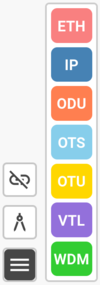 |
Show or hide different link layers such as IP, ETH, VTL, ODU, OTU, WDM, and OTS. |
 |
Show or hide nodes that currently have no visible links. |
Topology panel
The Topology panel helps you control the current view and layout:
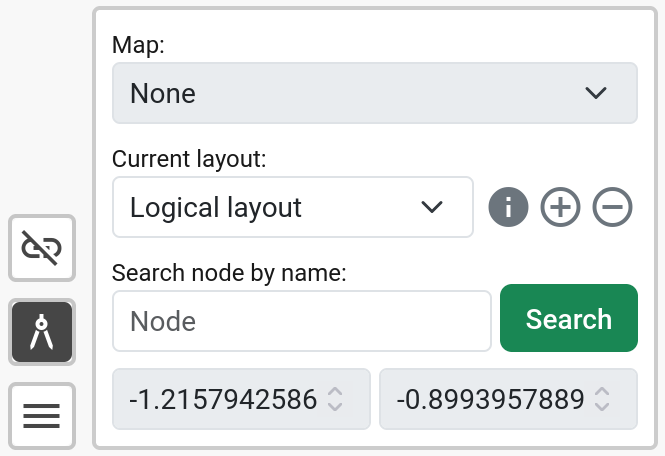
- Change the map type: OpenStreetMap, dark, none, or satellite
- Switch, inspect, add, or delete layouts
- Search by node name
- Check the current mouse longitude and latitude
Outside the panel, you also have quick tools for:
- zooming in and out
- creating polygons for area-based work on the layout
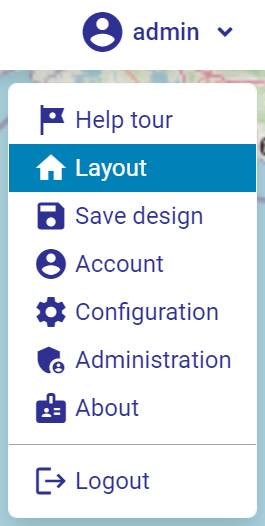
Top menu
The top menu contains global actions:
- product and design identification
- help tour access
- navigation back to the layout
- saving the current design
- configuration and profile access
- logout
Key shortcuts
Common shortcuts in this view:
- Open Control Window:
C + W - Undo picked-element history:
Alt + Left Arrow - Redo picked-element history:
Alt + Right Arrow
For the full list, see Keyboard shortcuts.