Control window
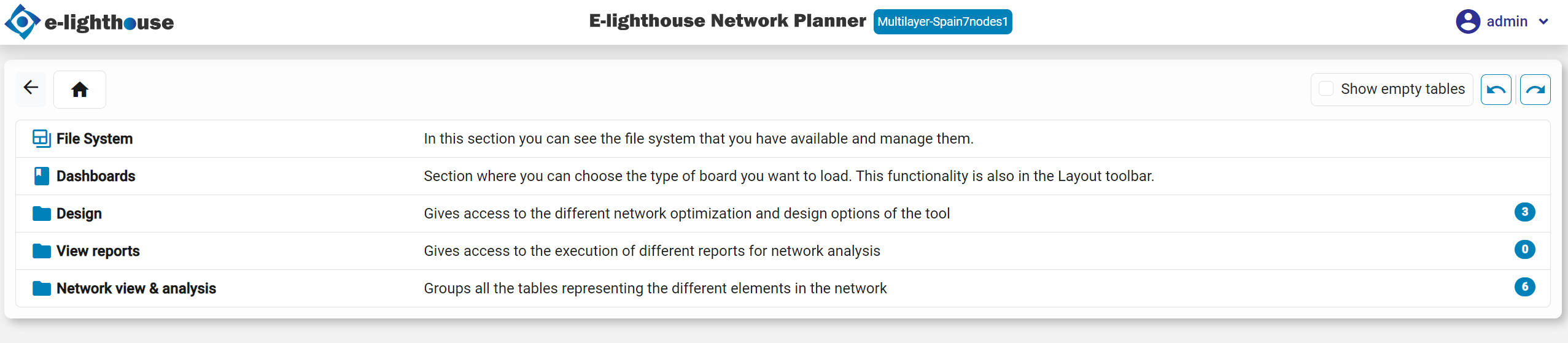
This control window gives access to the main design & analysis functionalities.
This panel contains in the upper part a number of tabs with:
- Tables with information of different network elements.
- Access to network design functionalities.
- Access to reporting functionalities.
Features in table view
Once viewing the information of any specific table, its name and description are displayed.
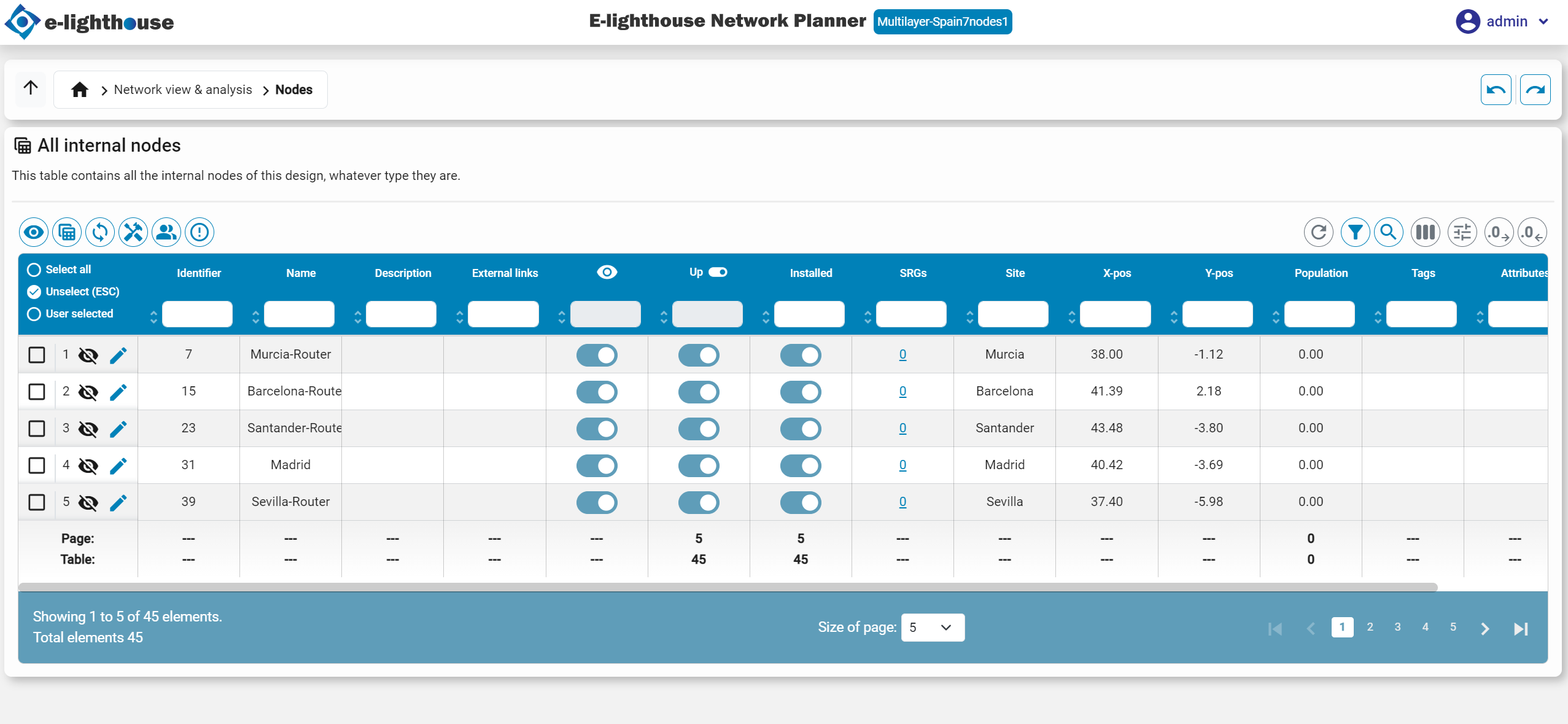
Just above the table on the left side you can see the different views available for the table being displayed. What differs from each view are the columns that are displayed.

And, on the opposite side of the views, you can:
- Search and filter the table data by entering keywords or values specific to each column.


- Hide or show columns in the table, depending on the view selected.

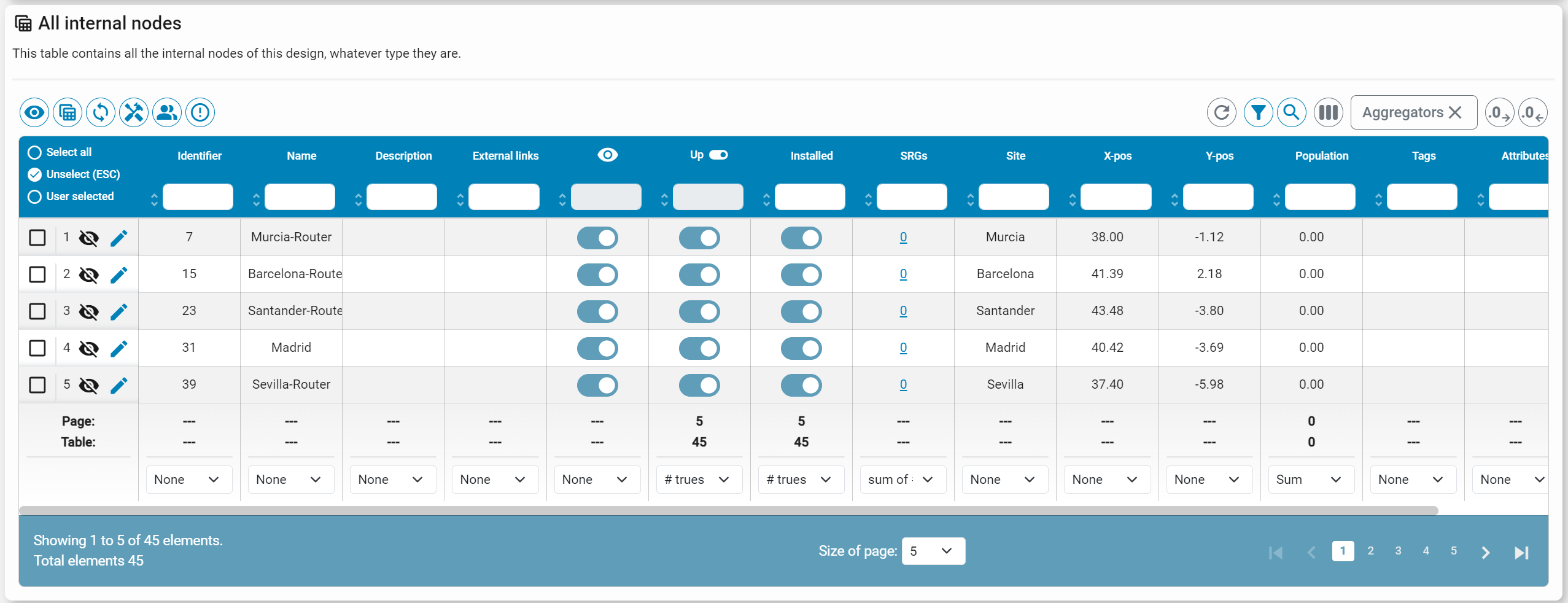
- Display or hide the aggregators of each column of the table. Once activated, at the end of each column you can display the data you want to display for that column.
- Modify the number of decimal places to display in cells with numerical values.
Key shortcuts
- Alt + S: to show empty tables too.
- Alt + F: to show the data-Containing too.
- ESC: escape key to deselect the rows of the tables.
- Historial of the picked elements. After picking multiple items, you can undo or redo your changes as follows: press Alt + Left Arrow to undo; and Alt + Right Arrow to redo. History of selected items: After selecting multiple items, you can undo or redo the changes as follows: Press Alt + Left Arrow to undo; and Alt + Right Arrow to redo. You can also do this thanks to the following buttons: